
In Exploratory, you can compile your created charts and other insights into a Note.
For content such as charts or analytics inserted into a Note, you can change the display size by clicking on the content and selecting from the size options that appear.
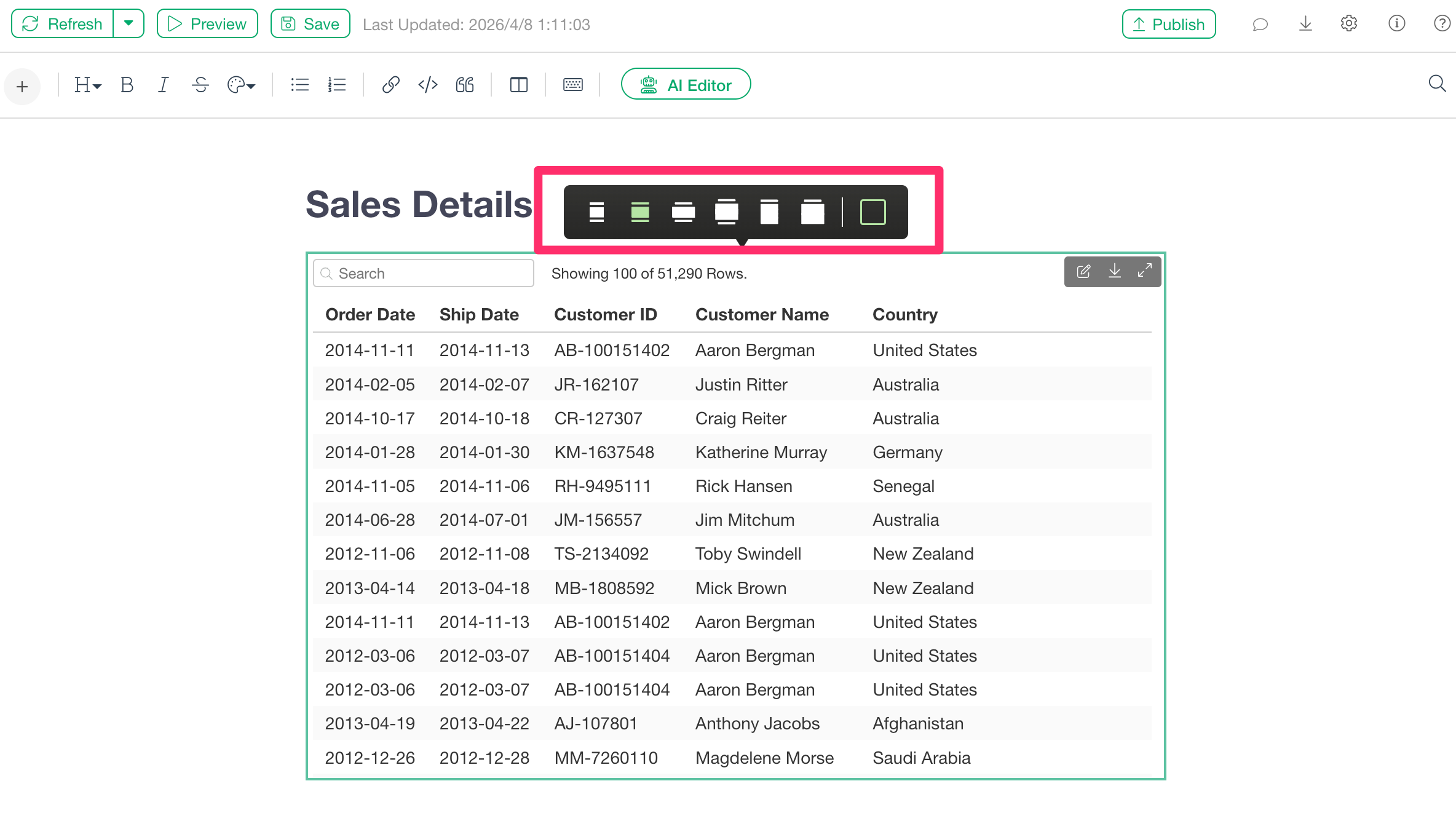
Below are the descriptions for each icon’s meaning.
Square
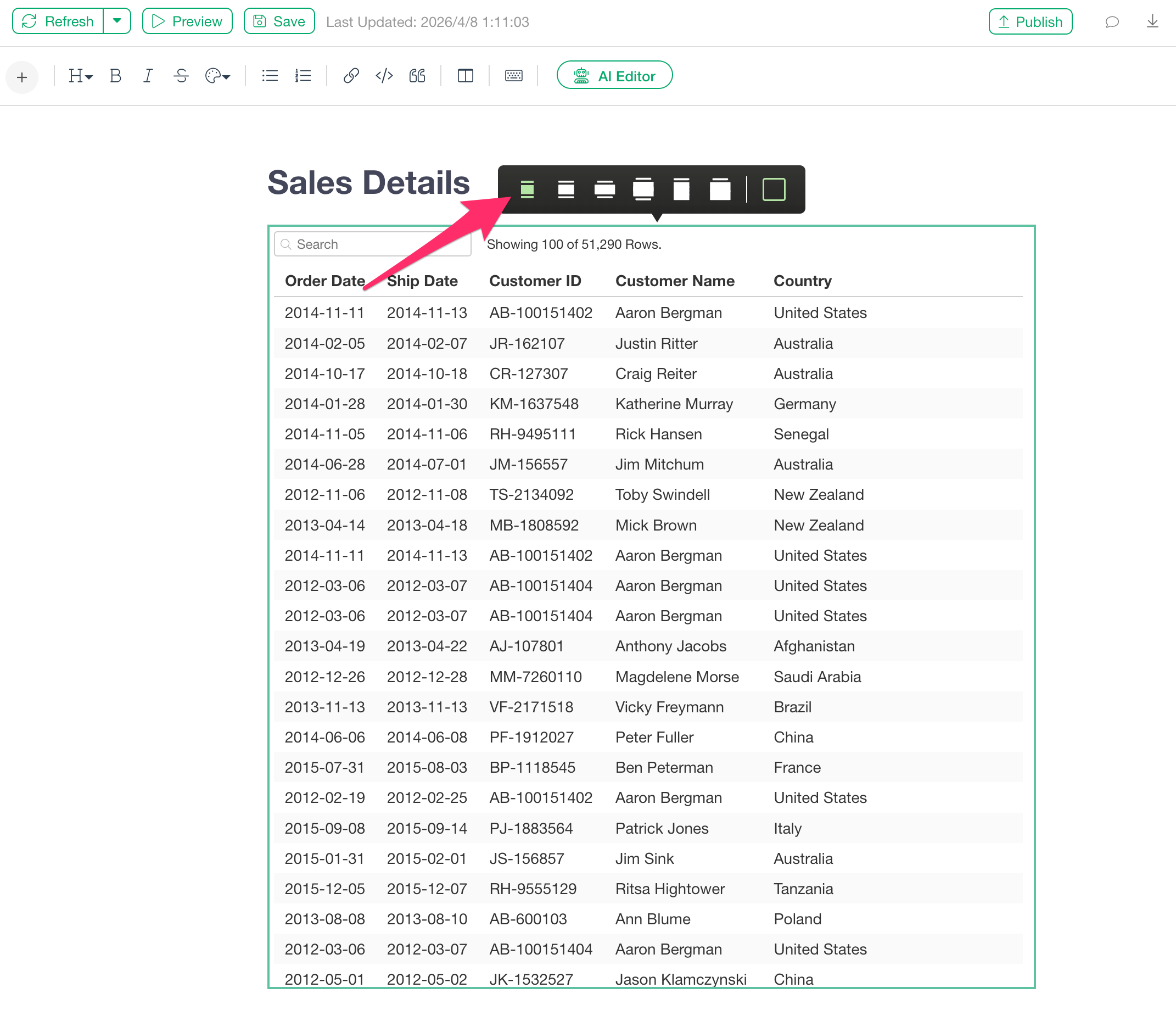
Selecting the Square option sets the chart to a 1:1 aspect ratio.
Default
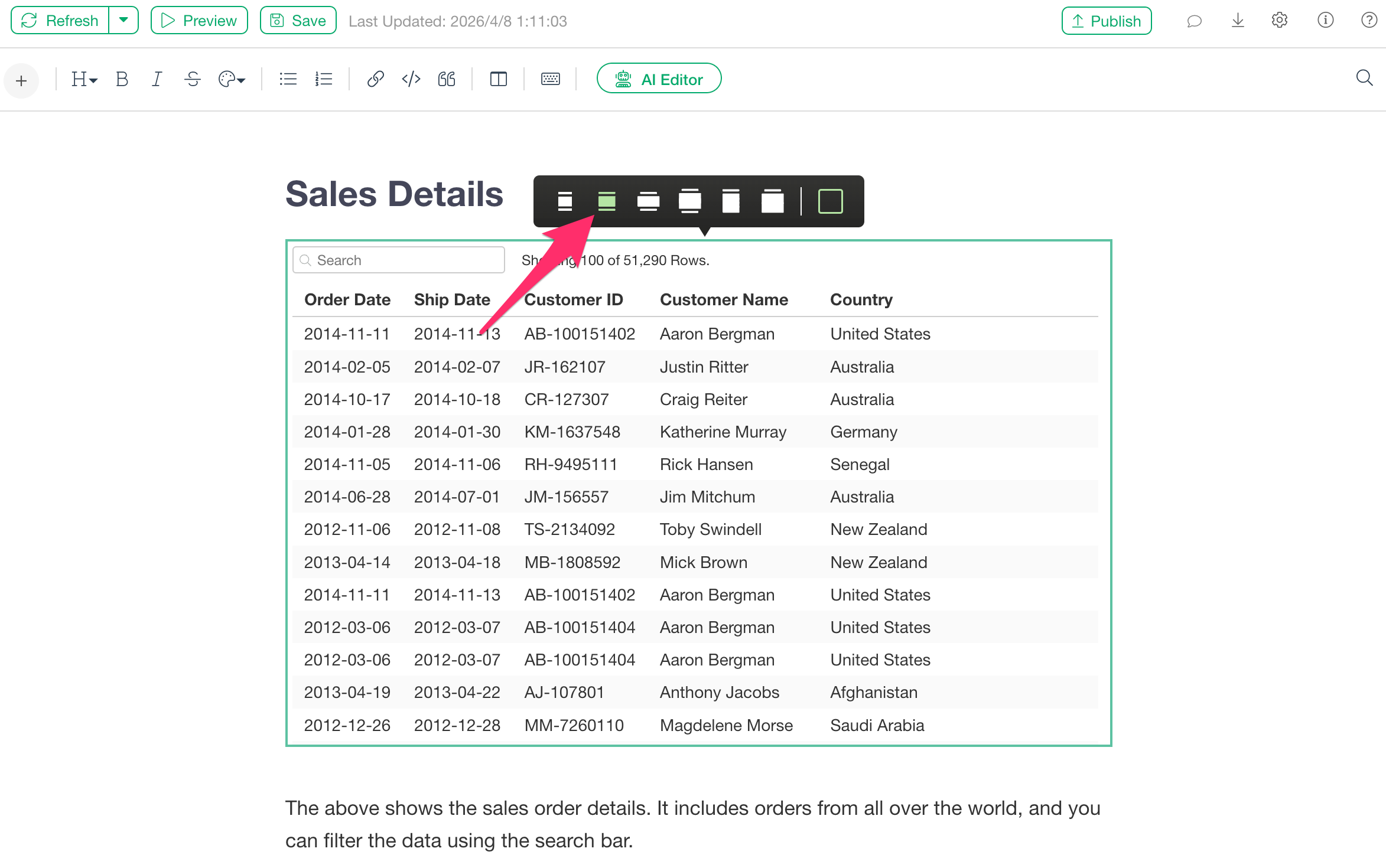
The second option from the left is the Default size. The content is aligned with the width of the text.
Wide
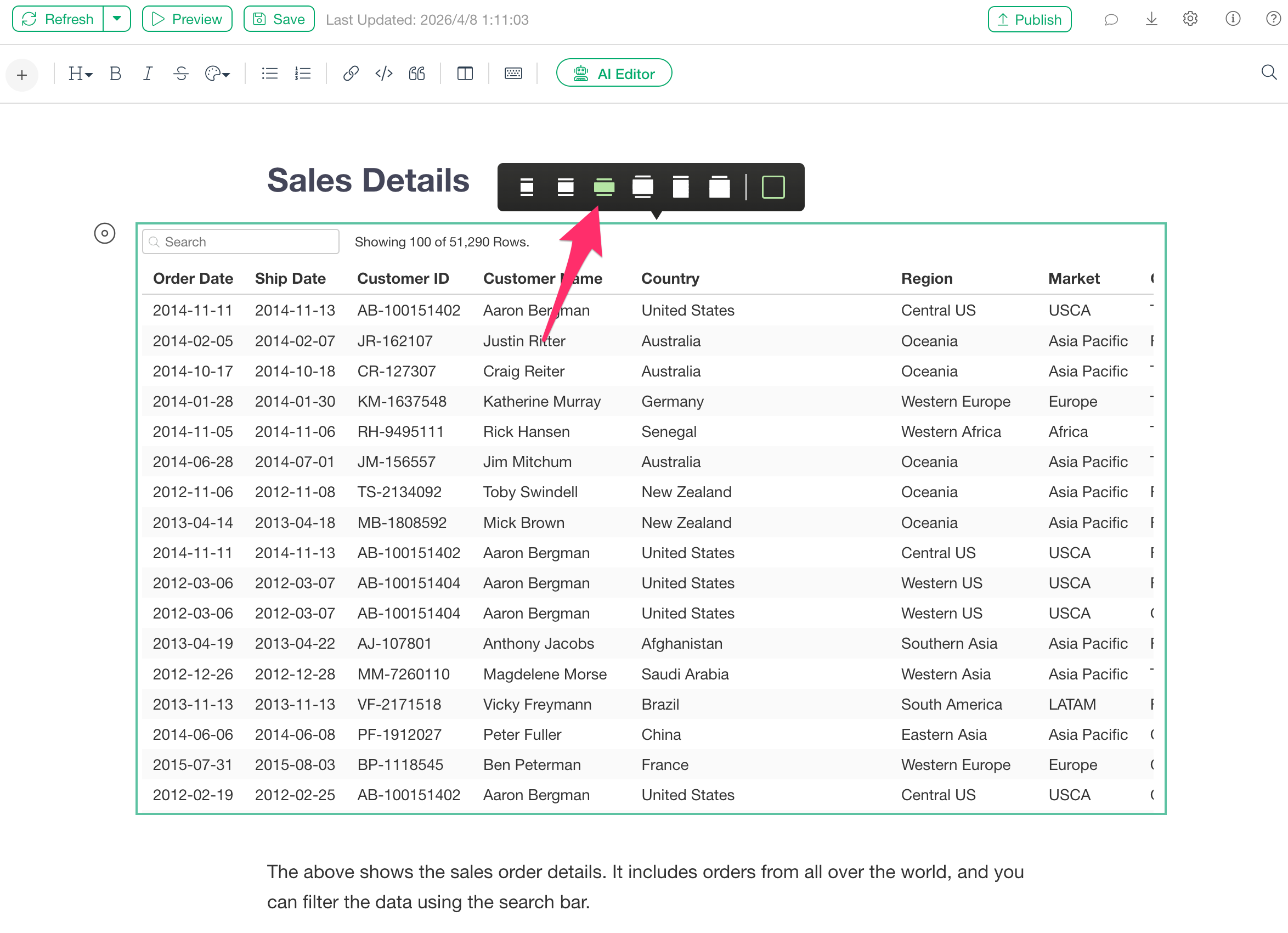
The Wide option is wider than the default size, extending beyond the text width. However, the width is set so that it does not overlap with the Note’s Table of Contents (TOC).
Tall & Wide
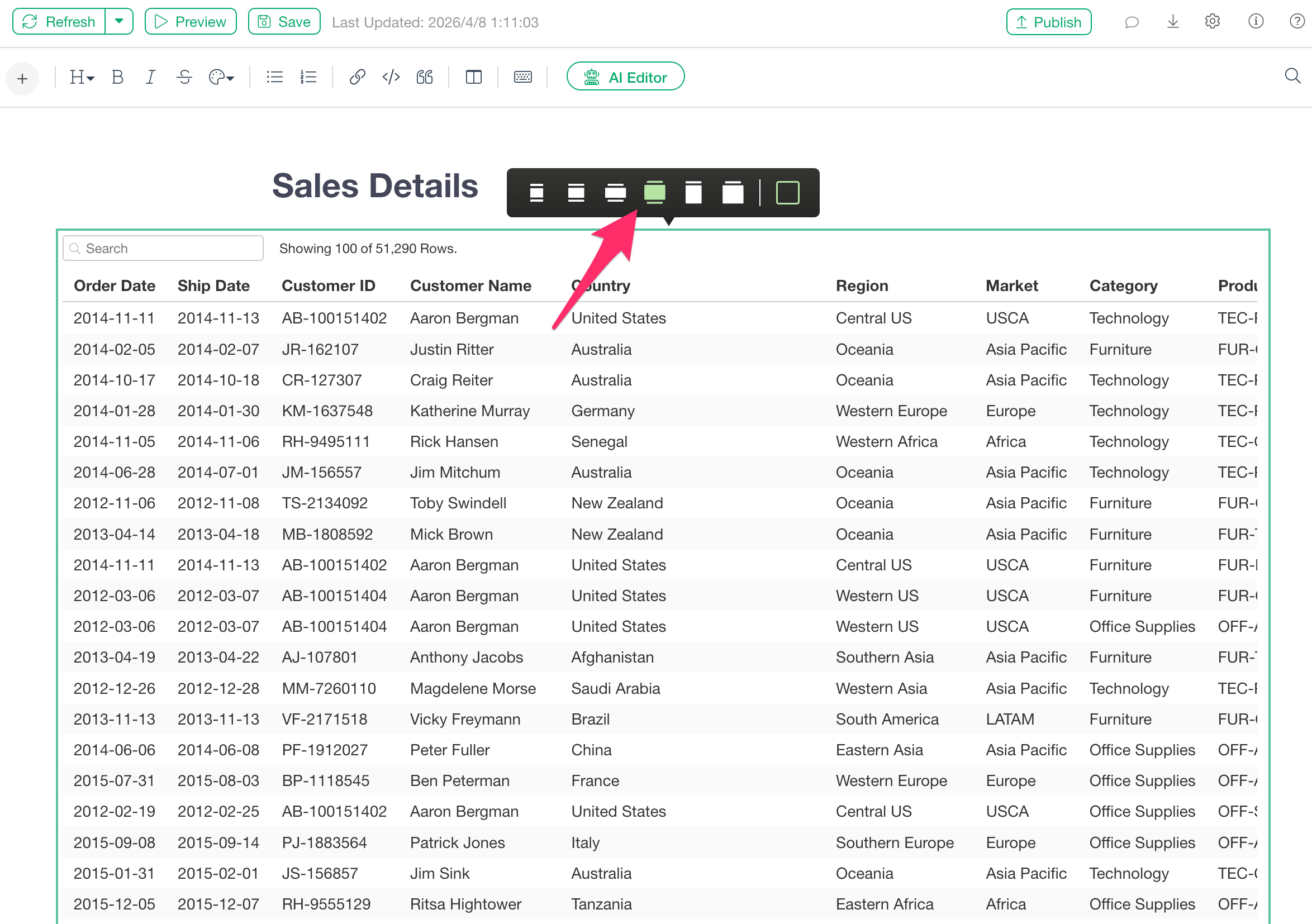
The Tall & Wide option is both taller and wider than the default size. The width is expansive enough to overlap with the Table of Contents area.
Tall
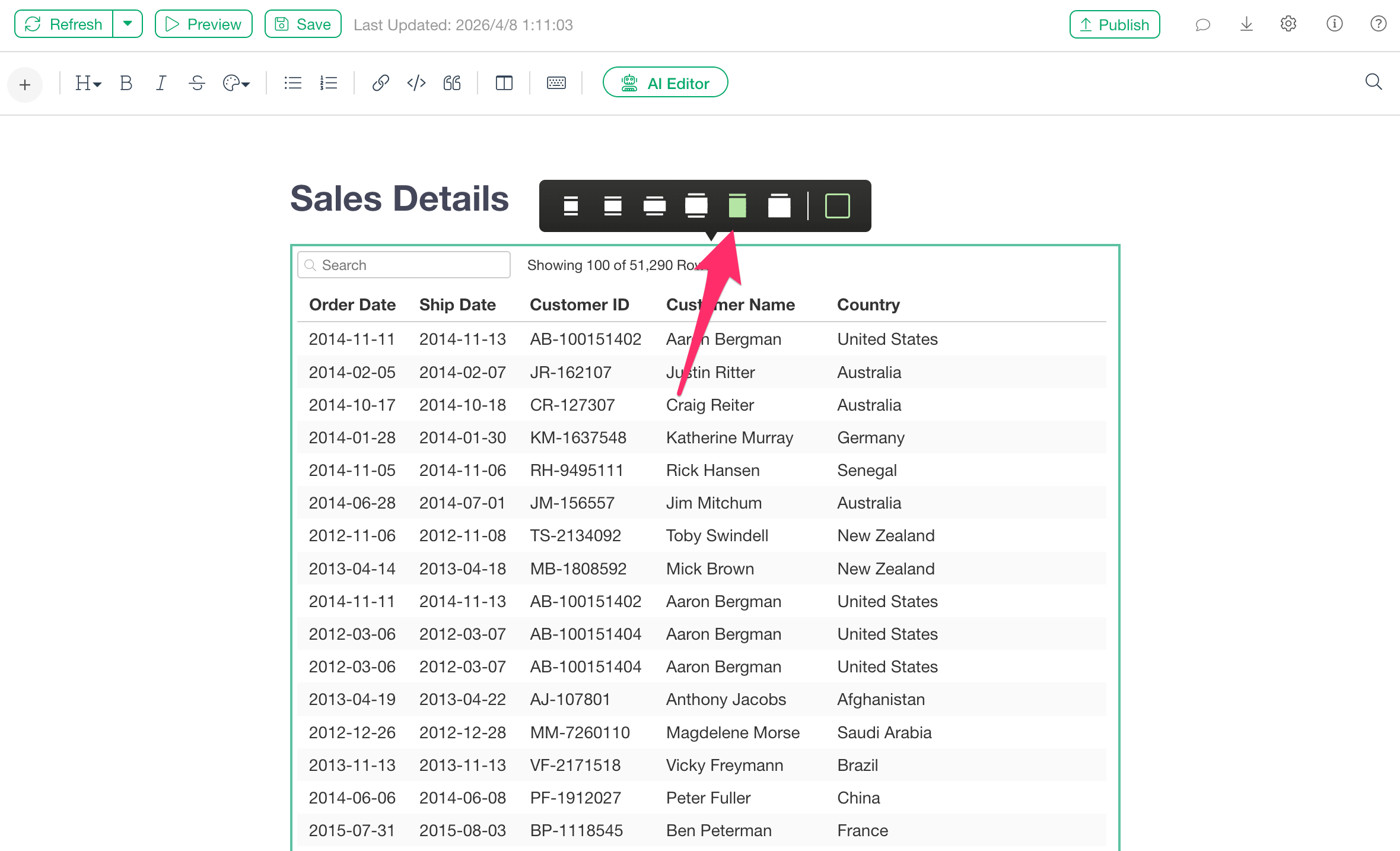
The Tall option makes the content vertically longer than the default size while maintaining the standard width.
Extra Tall & Wide (Table-specific)
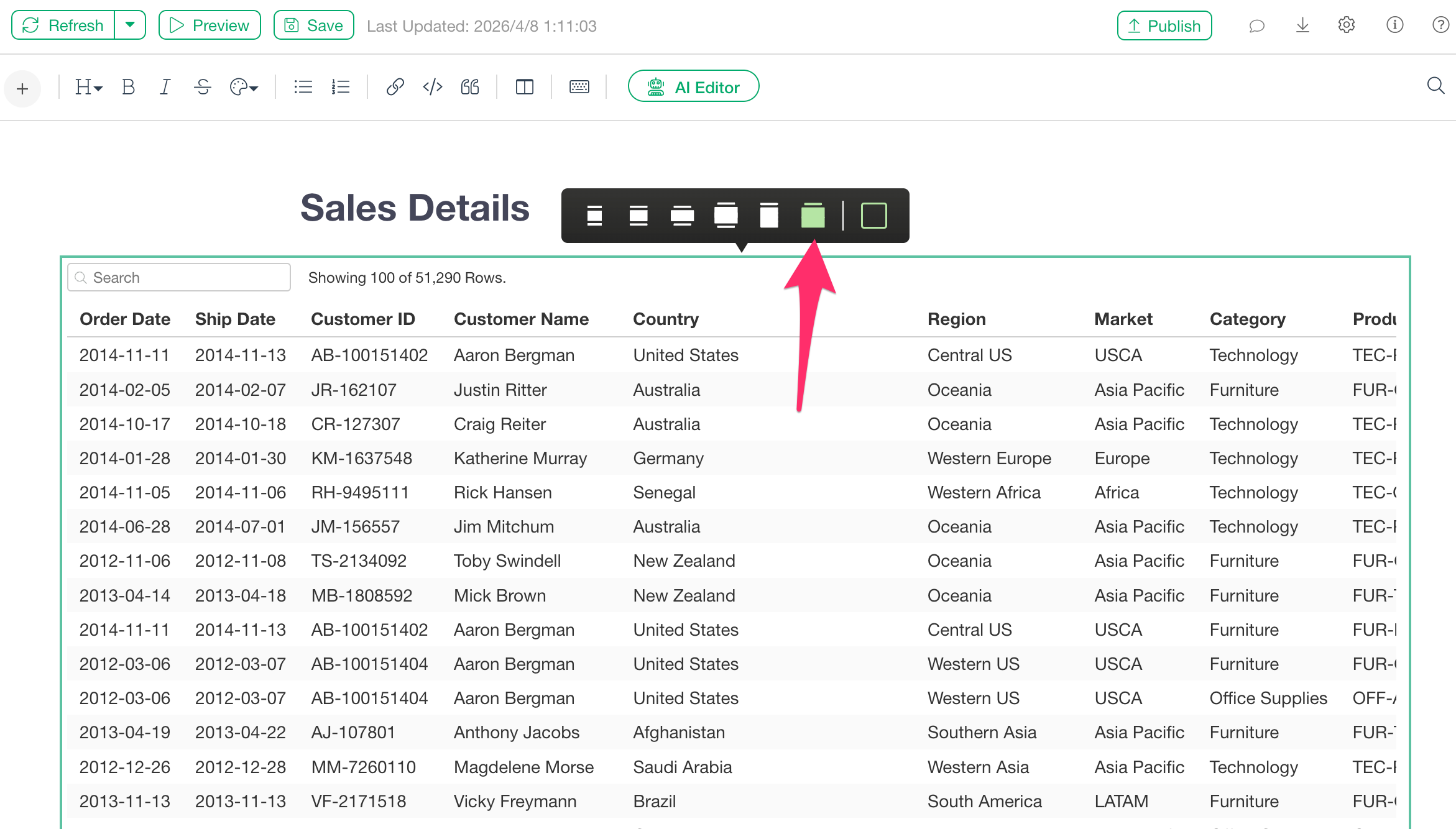
This option is available only for table-based charts (Table, Summary Table, and Pivot Table).
The width extends far enough to overlap with the Table of Contents. This option is even taller than the “Tall & Wide” setting, designed to display as much of the table as possible to minimize the need for scrolling within the chart itself.