Starting from Exploratory Desktop v15.3, a “Fetch Buffer Size (Bytes)” field has been added to the Oracle database connection dialog.
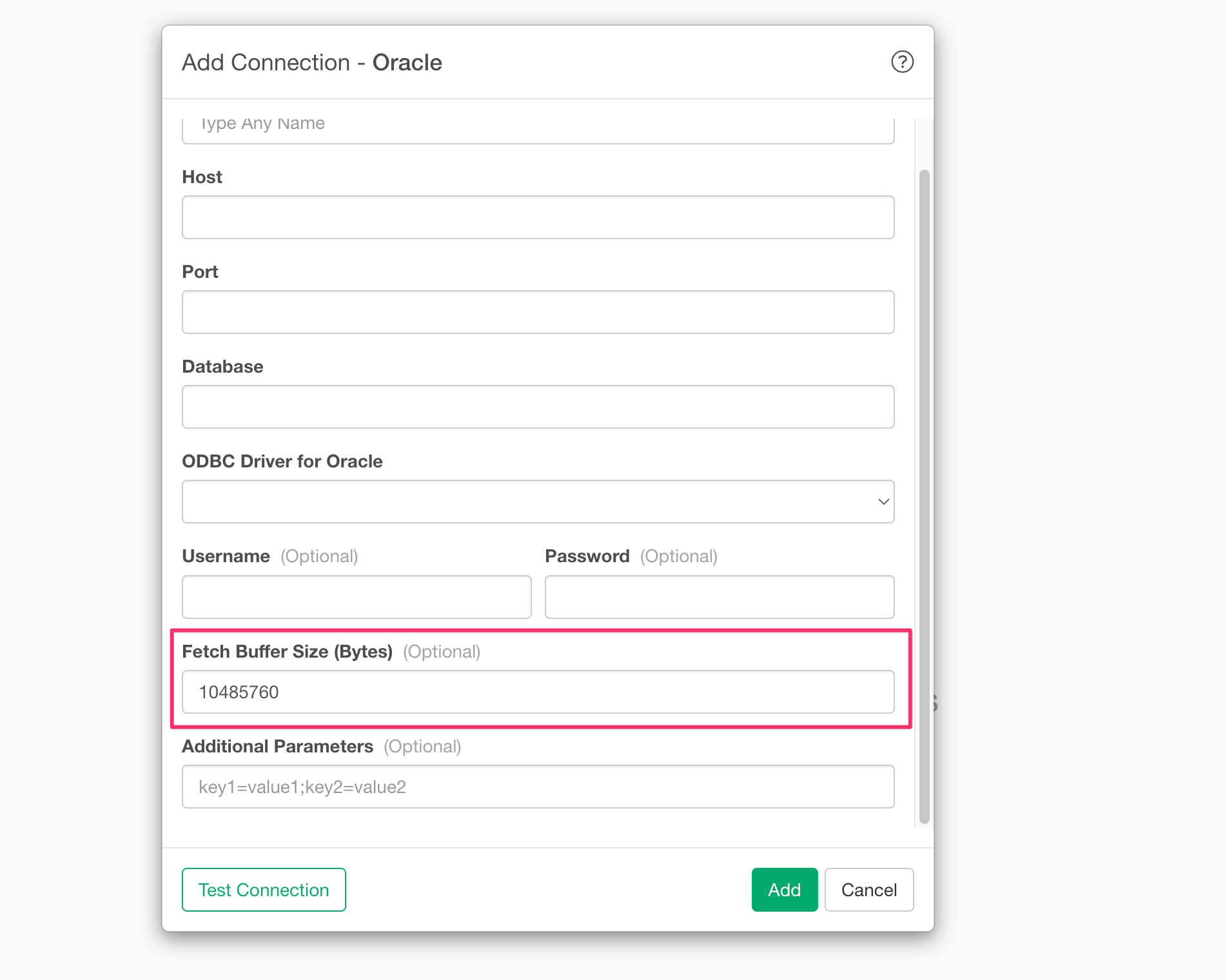
By adjusting the amount of data retrieved in a single network communication through this field, you can reduce the number of round trips between Exploratory and the Oracle database, significantly speeding up the import of large datasets.
How to Use
Open the Connection Dialog
The “Fetch Buffer Size (Bytes)” can be configured from the Oracle data connection settings dialog.
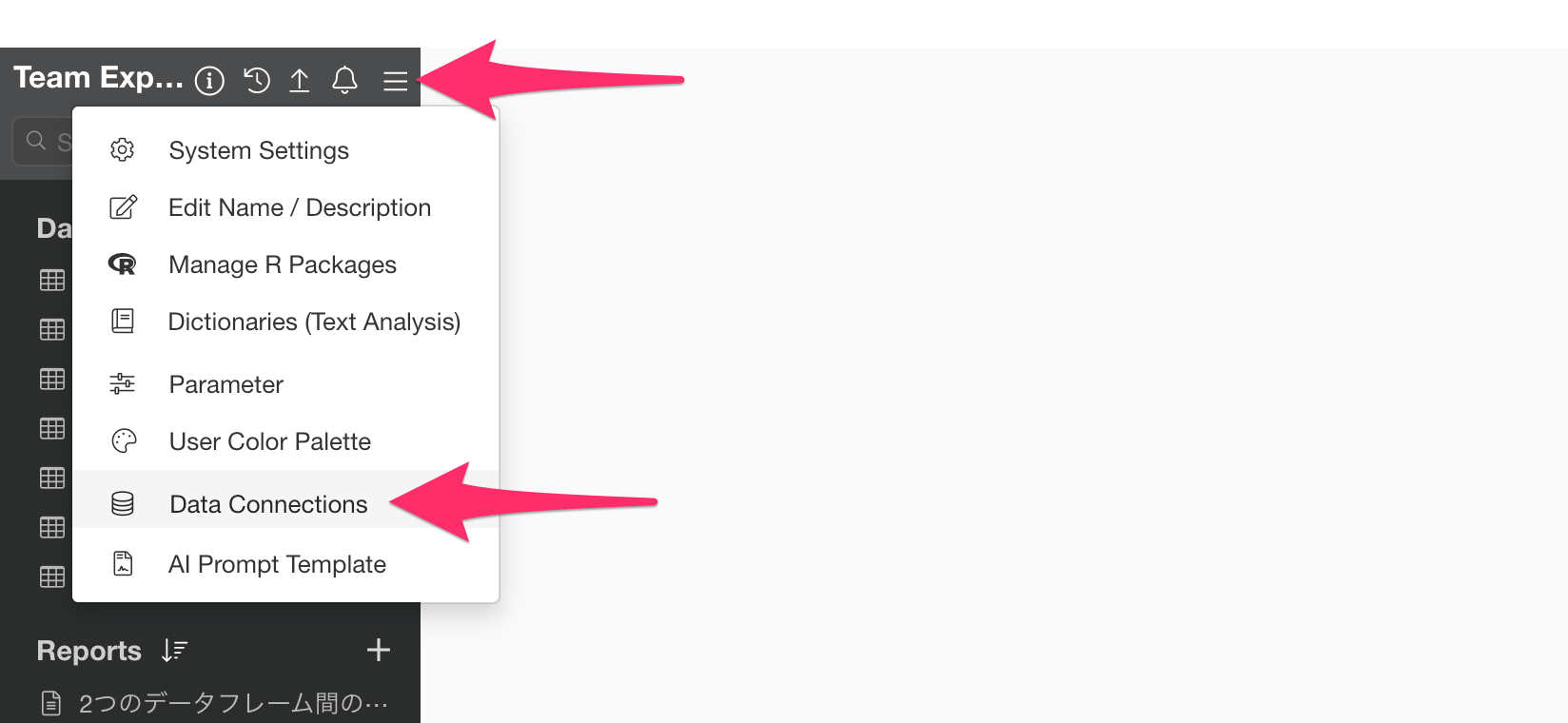
You can open the dialog by selecting “Data Connections” from the Project menu.
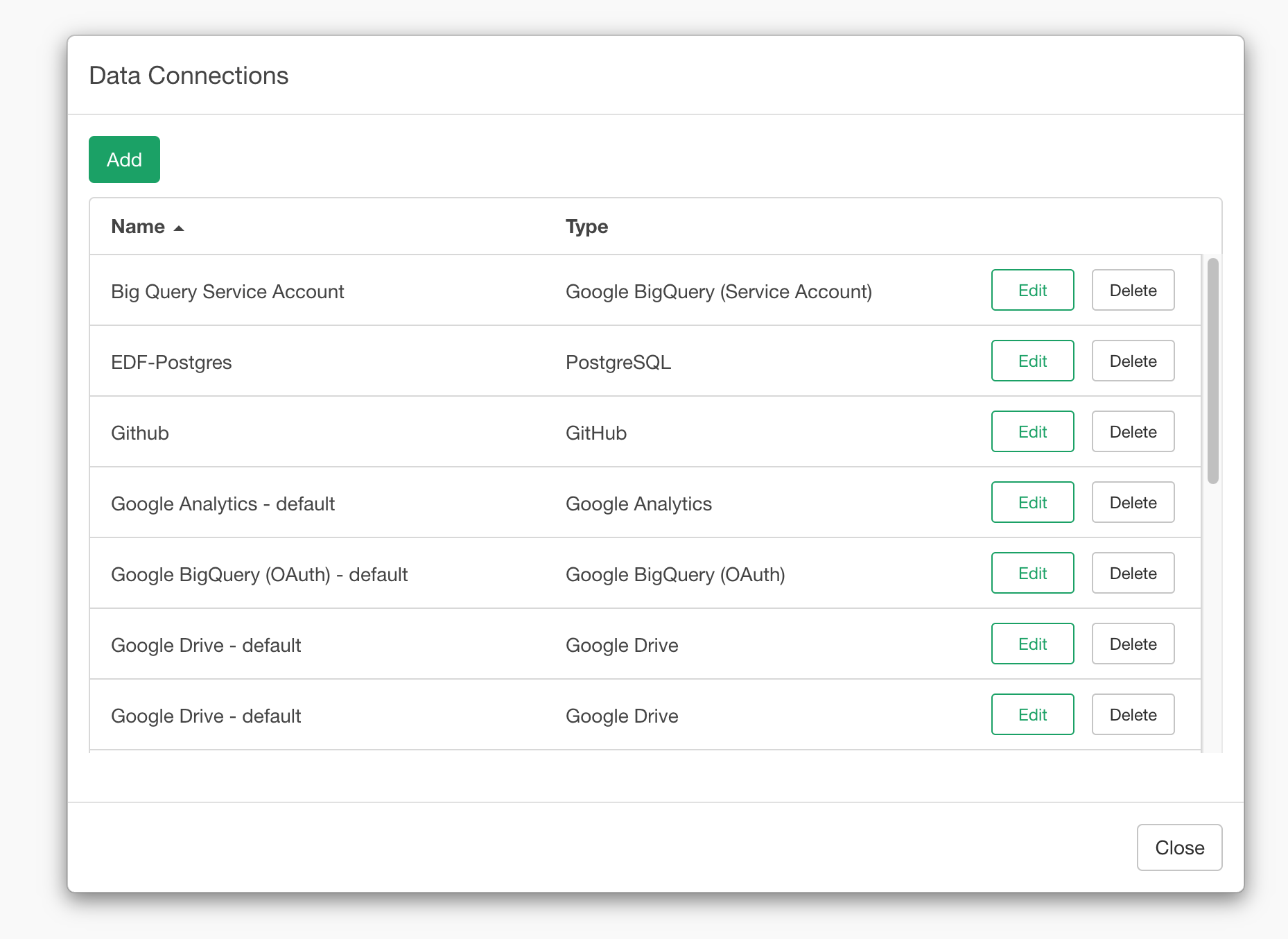
To create a new connection, click the “Add” button. If you want to edit an existing connection, click the Edit button for the target connection from the list of configured connections.
Once you open the Oracle data connection dialog, you will see the “Fetch Buffer Size” field.
For New Connections
A default value of 10 MB (10,485,760 bytes) is set. This value works well for most environments, but you can adjust it depending on your data volume or network conditions.
Increasing this value allows more data to be retrieved in a single network communication. This can further improve import speeds when dealing with large datasets of hundreds of thousands of rows or more, or in environments where the network RTT (latency) is high, such as when the Oracle server is hosted in the cloud.
On the other hand, a larger value consumes more memory, so please keep in mind the upper limit based on your machine’s available RAM. If the data being imported is small, the default value is sufficient.
For Existing Connections
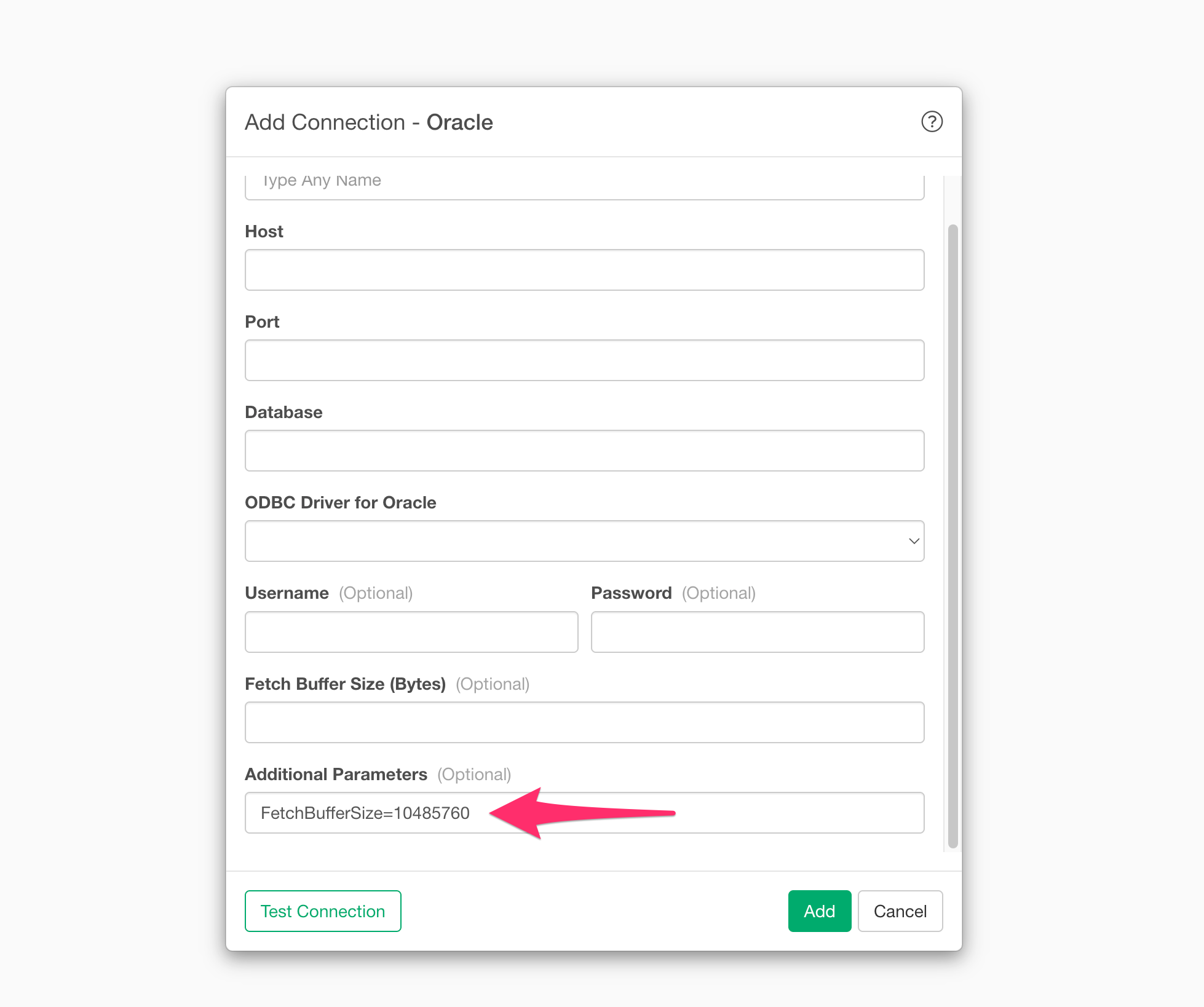
Connections created in the past remain set to the old default value (60 KB). To improve performance, please manually enter 10485760 in the “Fetch Buffer Size (Bytes)” field.
Note that if you have already set FetchBufferSize=any_value in the “Additional Parameters” field, please ensure they are unified to your desired value in either field.