
Starting with Exploratory Desktop v15.3, a “Enable AI Features” checkbox has been added to the AI tab in the System Settings.
This option allows you to disable all AI-related features across the entire application at once, including AI Data Wrangling, AI Functions, AI Auto-Fix, AI Summary, and the AI Note Editor.
Settings
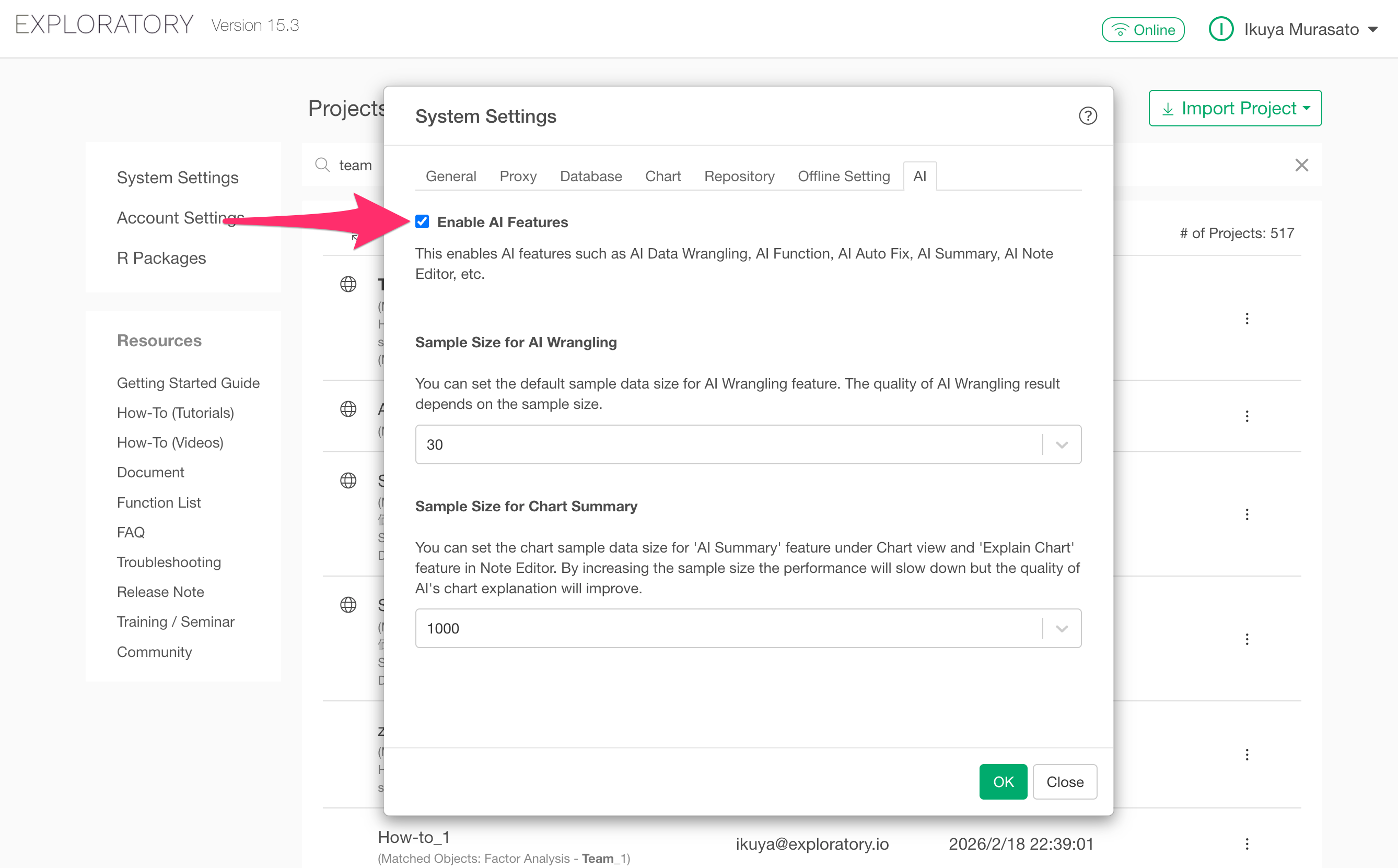
To access the AI settings, click “System Settings” from the Project List.
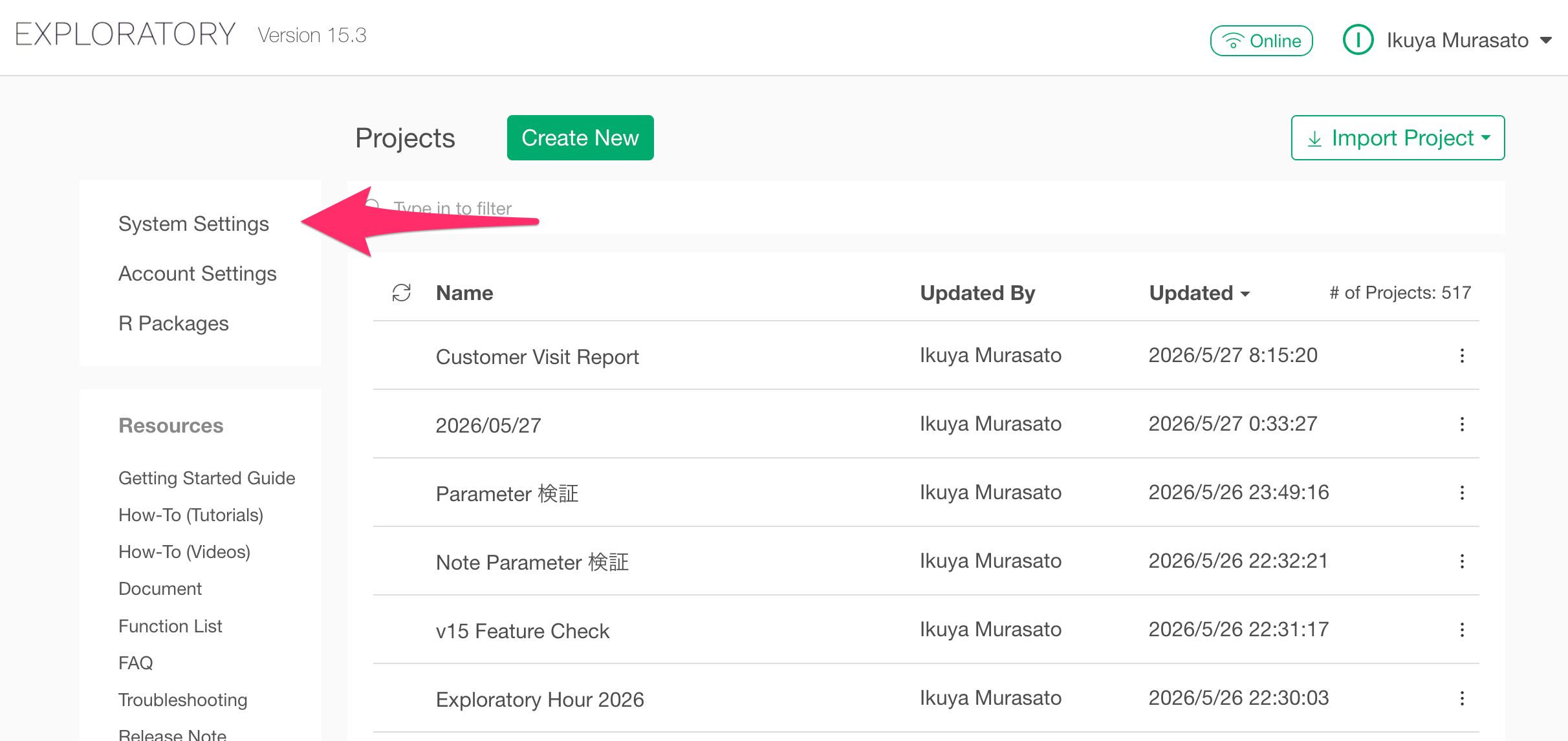
Navigate to the “AI” tab in the dialog box that appears.
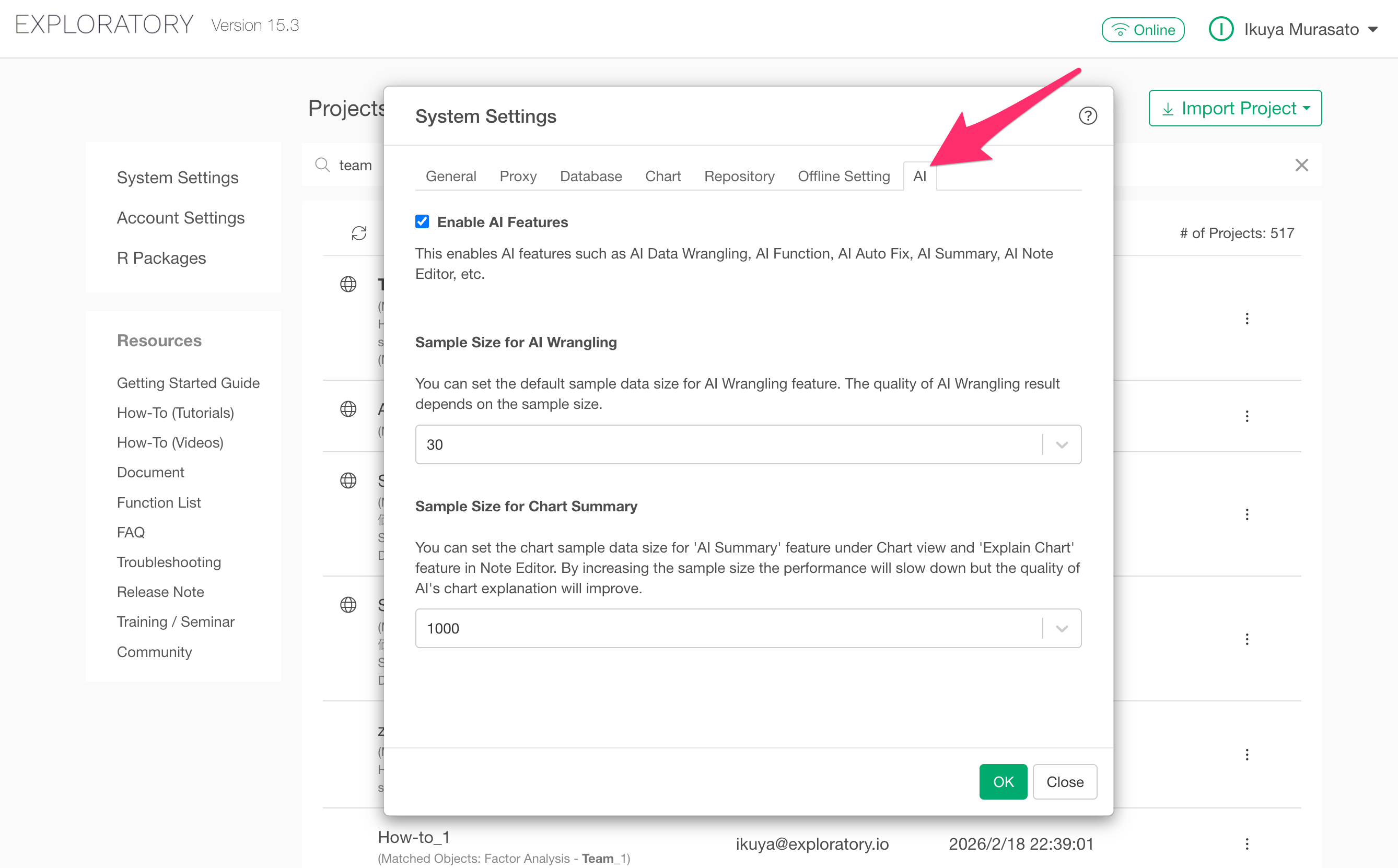
The “Enable AI Features” checkbox is displayed at the very top of the AI tab. It is checked by default, meaning the AI features are enabled.
To disable all AI features, uncheck “Enable AI Features” and click “OK”.
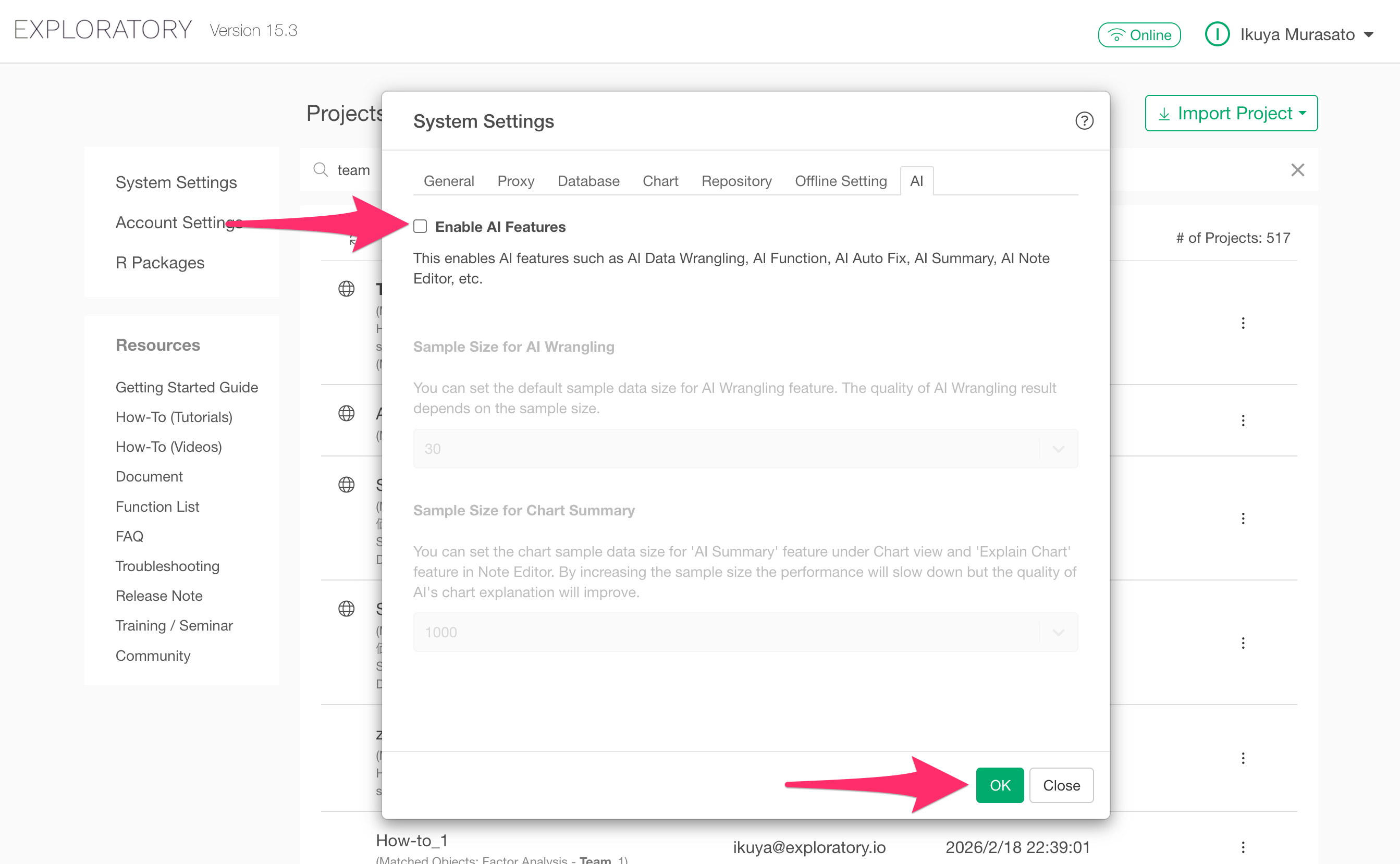
This will hide AI-related menus, buttons, and features at the application level.
Note that this setting is saved and will remain in effect even after restarting Exploratory.
To re-enable the AI features, check “Enable AI Features” and click “OK”.