
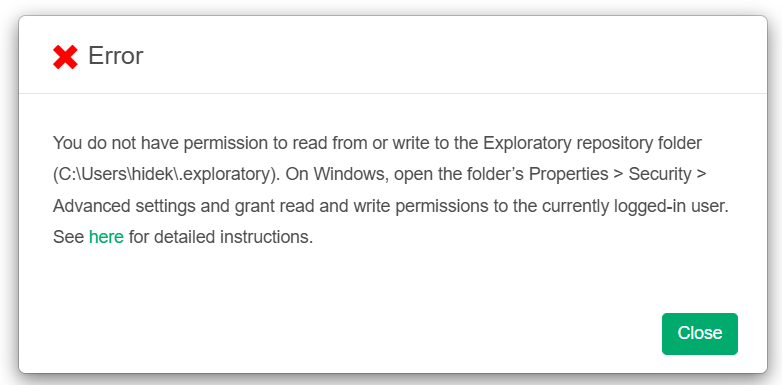
When installing or upgrading Exploratory on Windows, an error such as You do not have permission to read from or write to the Exploratory repository folder or Operation not permitted. Please check file permissions and try again. may be displayed upon startup, preventing Exploratory from opening.
Cause
This error occurs because write permission for the repository directory shown on the error screen has not been granted to the currently logged-in Windows user.
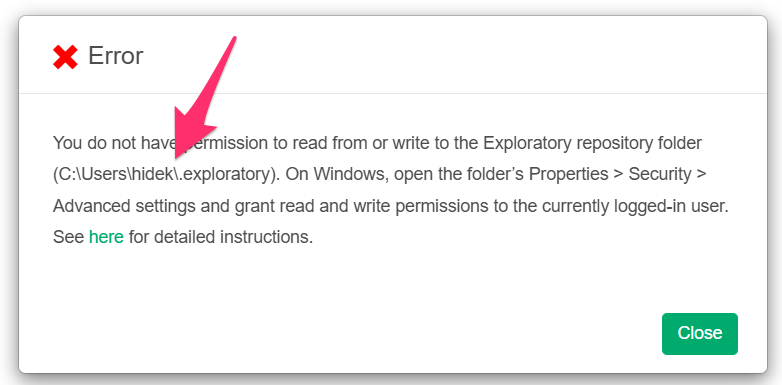
By default, the Exploratory repository is created at C:\Users\<username>\.exploratory. However, if you have specified a different location, that directory path will be displayed in the error dialog (e.g., C:\Users\hidek\.exploratory in the screenshot).
For Exploratory to run properly, the logged-in user must have “Full control” permissions for the repository directory.
Note that launching Exploratory with “Run as administrator” will not resolve this issue. “Run as administrator” only temporarily borrows administrative privileges at startup, leaving the permissions assigned to the logged-in user insufficient.
Solution
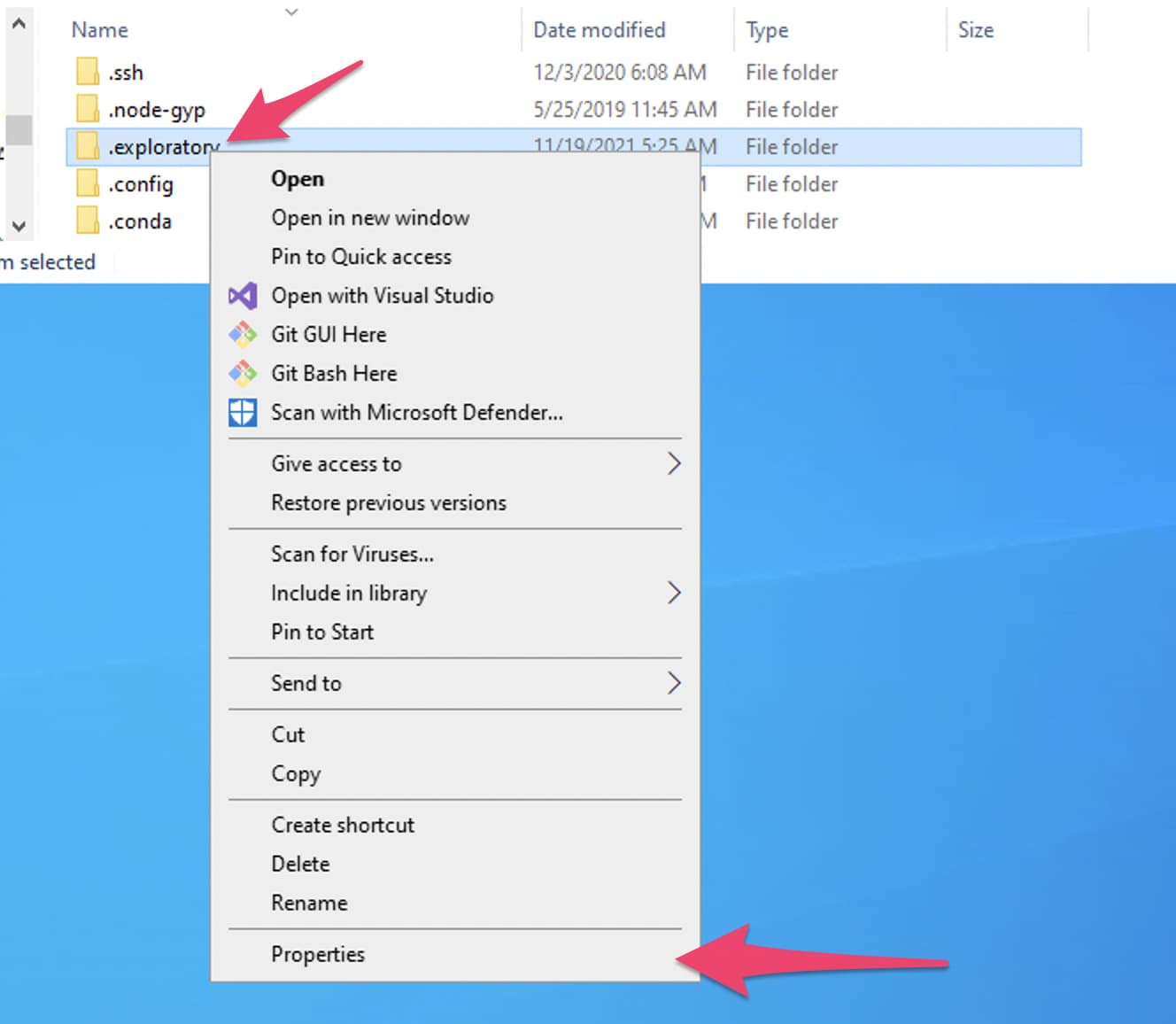
First, open the repository directory in File Explorer. Since .exploratory is a hidden folder, enable hidden items from the View menu of File Explorer.
Next, right-click the .exploratory folder, and select Properties from the menu that shows up.
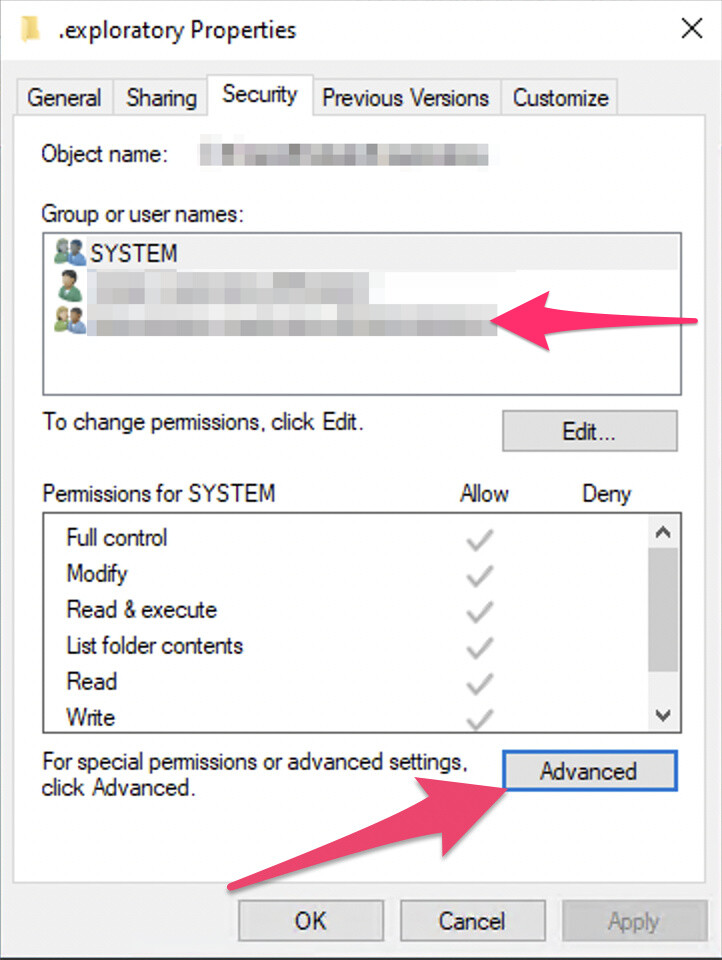
Once the Properties dialog opens, select the Security tab.
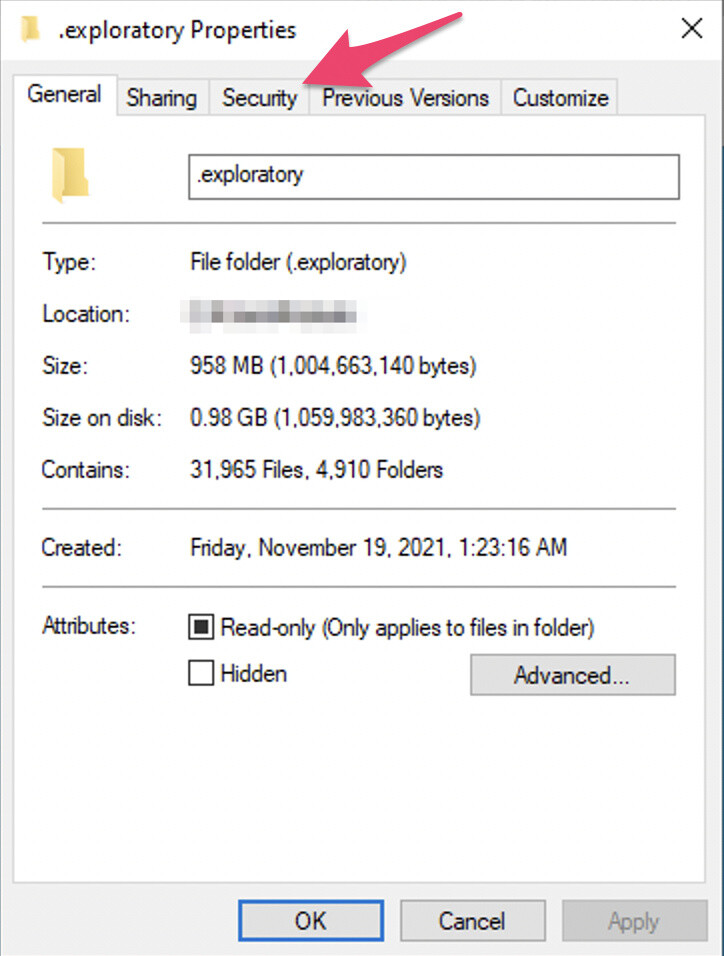
Note that the “Read-only” checkbox on this dialog may give you an impression that the directory is set to be read-only, but actually it is not. You can simply ignore this checkbox.
On the Security tab, click the Advanced button.
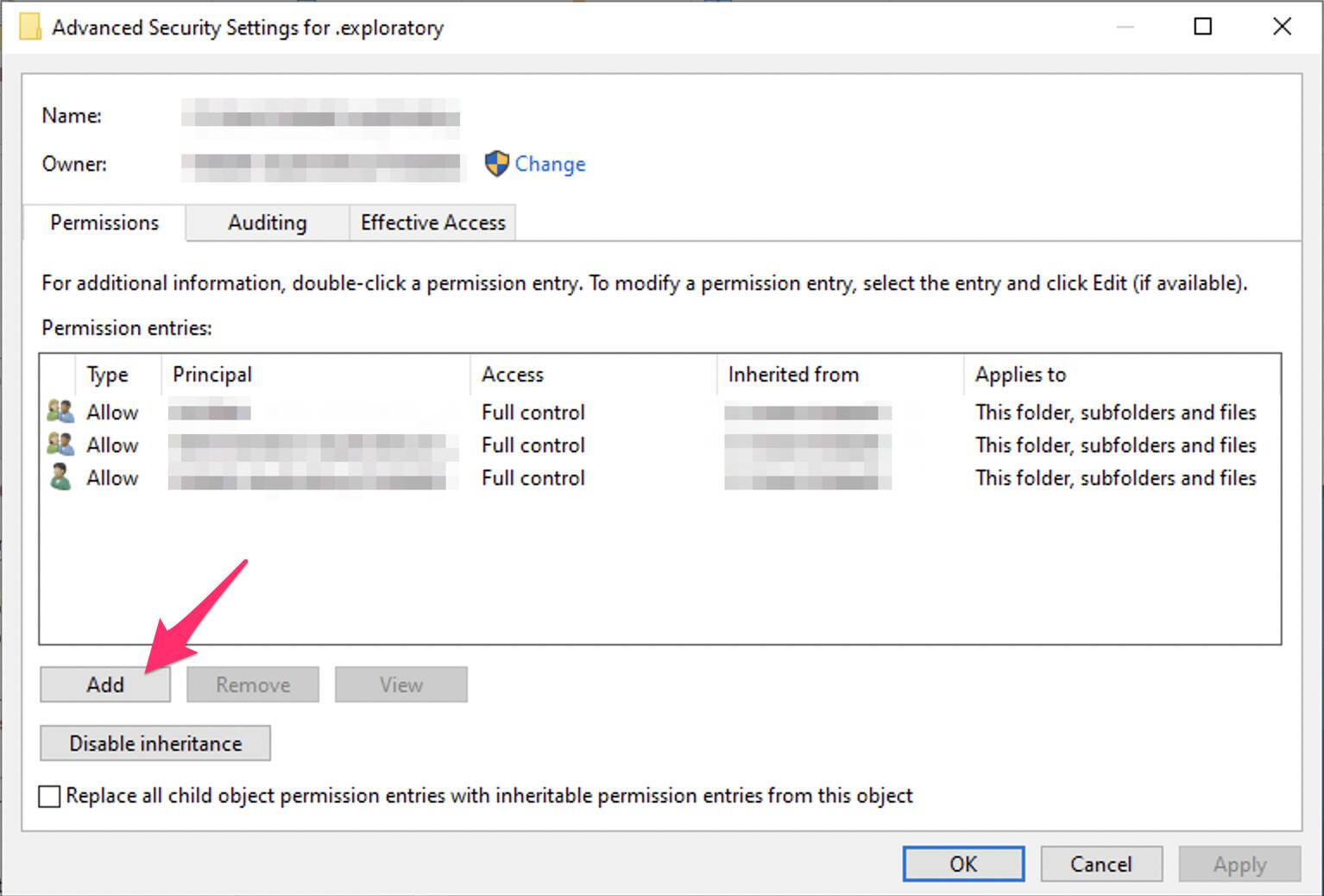
On the Advanced Security Settings dialog, you can see which user has what kind of permission on the directory. The user you are using needs to have Full control permission, so if the permission is insufficient, click the Add or Edit button, change the permission to Full control, and apply it.
Once the permission is granted, right-click the Exploratory installer and choose “Run as administrator” to install it again. In most cases, this resolves the problem.